WooCommerce AI integration: how I connected my store to Claude, ChatGPT and Grok
On its own, an AI chatbot can only tell you what to change on your website. Connected to the site, it can make the change, with you approving each step. Here is how that works on WordPress and WooCommerce, what I use it for every day, and where I keep it on a short leash.
For about six months I have run my own sites and several client stores through AI. Not by pasting text into ChatGPT and copying the answer back, but by connecting the AI directly to WordPress, so it can read pages, edit SEO fields, set up redirects, pull Google reports and check its own work on the live site.
This post explains how that connection works in plain terms, shows a real example from this website, compares Claude, ChatGPT and Grok, and covers the safety rules I would not run without.
What a WooCommerce AI integration actually is
The technology is called MCP, the Model Context Protocol. It is an open standard that lets an AI app talk to outside tools. You do not need to understand the protocol to use it, but the idea is simple.
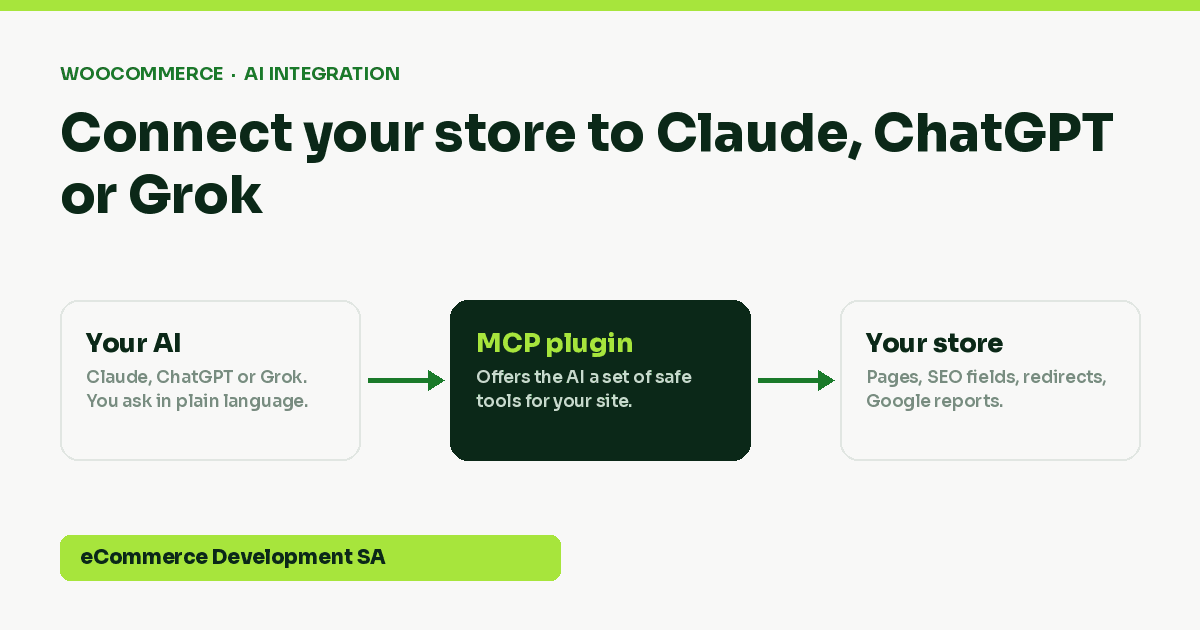
A plugin on your WordPress site offers the AI a list of tools: read this page, update this SEO title, create this redirect, fetch last month’s Search Console data. You add the plugin’s address to your AI app as a connector. From then on, when you ask the AI to do something on your site, it picks the right tool, calls it, reads the result and carries on.
How the pieces connect
The plugin decides which tools exist, so it also decides what the AI cannot do.
That last point matters. The AI can only use tools the plugin offers. If the plugin has no tool for editing code, the AI cannot edit code, however you phrase the request.
A real example from this website
Last week I needed to change the year our business was founded on this site. It appeared as “since 2014” in page copy, blog posts, the homepage hero and the author box under every article. Doing that by hand means opening dozens of pages and hoping you found them all.
Instead I asked the AI to find every mention first, without changing anything. It ran a dry run and came back with 97 mentions of “2014” across 32 pages and posts. Most of those were not about us at all: data inside our calculators, and a year in a case study about another company. So the AI narrowed the change to the phrases that were actually about the founding year, ran it, and reported 43 changes across 28 pages and posts. Then it found the remaining mentions in two places a page search cannot see, the homepage hero and the author box, and fixed those too.
Illustration based on the real session described above.
The time saved is nice. The judgement is the real value: the AI did not blindly replace every “2014” and break our calculators. It looked, explained what it found, and changed only what it should. Most of my day-to-day use looks like that.
What I use it for every week
- SEO titles and descriptions. Review the Rank Math fields across a set of pages and rewrite the weak ones, with each change listed before it is made.
- Search Console triage. Pull the pages sitting just off page one and suggest what to change on each.
- Internal links. Find related articles and add links between them, or add a call to action to every post on a topic.
- Redirects. When a page moves, set up the redirect and check the old address now lands on the new page.
- Content drafts. Write a page or post as a draft in the site’s own layout, for me to review before it goes live.
- Checking its own work. After a change, fetch the live page and confirm it actually renders. This step catches more problems than anything else.
Claude, ChatGPT or Grok?
All three can connect to the same plugin, and all three now support skills: saved instructions the AI loads when a task calls for them, so it follows your house rules without being told each time. The differences are in setup and plan, not in what the plugin can do.
| AI | Where you add the connector | Notes |
|---|---|---|
| Claude | Settings, then Connectors, then add a custom connector | Custom connectors need a paid plan. This is what I use most. |
| ChatGPT | Settings, Apps & Connectors, Advanced: switch on Developer mode, then create the connector | Developer mode shows extra confirmation steps for actions that change things. |
| Grok | grok.com/connectors, then New Connector, then Custom | Custom connectors are on paid Grok plans. Works well in my testing. |
If you already pay for one of them, use that one. The plugin and the skills matter more than which brand of AI is on the other end. Menus and plan names change often, so check the current steps in your AI app before you set it up.
The safety rules I would not run without
Giving an AI write access to a live store is powerful, and it should feel slightly uncomfortable. These are the rules I follow, and they are the defaults I set for clients.
- No code or CSS editing by default. Early on, a style-editing tool on one site kept doubling backslashes in the stylesheet with every save. I took that tool away. On client installs, code and CSS tools are switched off.
- Dry run before any bulk change. Find first, change second, as in the example above. A search-and-replace across a whole site should always show you what it will touch.
- Drafts, not publishing. New content goes in as a draft. A person reads it before it goes live.
- Check the live page. A change is not done until the AI has fetched the page and confirmed what a visitor sees.
- Keep customer data out of it. As I configure the plugin, it works with content, SEO and analytics, not customer or order records.
Your data and POPIA
When the AI works on your site, the content it needs (page text, SEO fields, report figures) goes to the AI provider you use: Anthropic for Claude, OpenAI for ChatGPT, xAI for Grok. You remain the responsible party for personal information on your site under POPIA. Three practical steps: use a plan where your provider does not train on your data, keep customer and order records out of the AI’s reach, and add a line to your privacy policy saying you use AI tools to manage your website.
What setting it up involves
If you are comfortable with WordPress, the outline is: install the plugin, create the credentials it needs, add the connector in your AI app, test each tool against your site, and set your permissions. The fiddly parts are hosting that blocks API requests, security plugins that need an exception, and getting the permissions right so the AI can do the useful things and nothing else.
That is the part I do for clients. My AI Store Setup installs my MCP plugin on one WordPress or WooCommerce site, connects it to Claude, ChatGPT or Grok, installs my SEO, product copy and site health skills, and includes an hour of training on your own site. It is R4,995 once-off, with free plugin updates for 12 months.
WooCommerce AI integration FAQs
Can AI manage my WooCommerce store on its own?
It can do a lot of the work, but it should not work unsupervised. Treat it like a fast, capable assistant: let it find problems, draft changes and make routine edits, and review anything that goes live.
Do I need to know how to code?
No. You talk to the AI in plain language. Setup is technical, but daily use is not.
Does this work on Shopify?
Not with my plugin, which runs on WordPress. Shopify needs a different approach.
Which is best: Claude, ChatGPT or Grok?
All three connect to the same plugin. I use Claude most, and Grok has worked well in testing. If you already pay for one, start there.
Is it safe to give AI access to my website?
It is as safe as the permissions you give it. Limit the tools, keep code editing off, require dry runs for bulk changes and review drafts before publishing.
What does it cost to run?
A paid plan on the AI you choose, plus the setup. The plugin itself has no monthly fee.

We have built 400+ online stores for South African businesses since 2014. Read more about WooCommerce development in South Africa.