How to cancel your Shopify subscription (and what to do first)
The exact steps to cancel or pause your Shopify store — plus the things to sort out first so you don’t lose your data, your domain or your Google rankings.
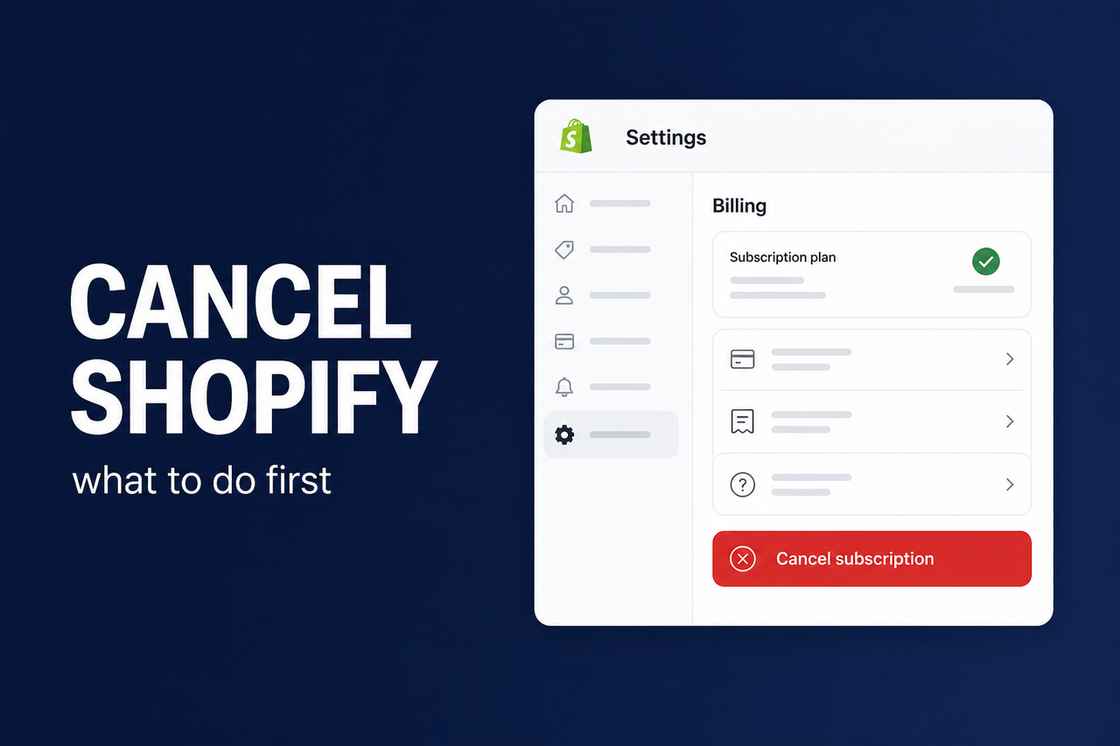
To cancel Shopify: log in as the store owner, go to Settings → Plan, choose Deactivate store, and follow the prompts. But don’t do it yet — export your data, cancel paid apps, and (if you’re moving elsewhere) sort out your redirects first, or you’ll lose things that are painful to get back.
Do these before you cancel
- Export your data. From the admin, export your products, customers and orders to CSV. Once the store is deactivated, getting this back is a hassle.
- Save your invoices & reports. Download any billing history and analytics you’ll want for your records or SARS.
- Cancel paid apps. Some apps bill separately from Shopify — uninstalling doesn’t always stop the charge. Cancel each subscription directly.
- Handle your domain. If your domain is registered through Shopify, transfer it out first so you keep it. If it just points to Shopify, you only need to re-point the DNS.
- Protect your SEO. If you’re moving to another platform, set up 301 redirects from every old URL to its new home. Skip this and you lose the Google rankings you paid for.
Deactivate last, not first
Everything in the list above has to happen while the store is still active.
Cancelling, step by step
- Log in as the store owner (staff accounts can’t deactivate).
- Go to Settings → Plan.
- Click Deactivate store (or Pause and build if you just want to step away cheaply — see below).
- Enter your password, choose a reason, and confirm.
Your store goes offline immediately and billing stops at the end of the current cycle. Shopify keeps your data for a period afterwards in case you reactivate, but don’t rely on that — export first.
Pause instead of cancel?
If you’re only stepping away temporarily, Shopify’s Pause and Build plan keeps your store and data on a reduced monthly fee, with checkout switched off. It’s often the smarter move if you might return — you keep everything and avoid rebuilding later.
Deactivate or pause: what you keep
The two options under Settings → Plan.
| Deactivate store | Pause and Build | |
|---|---|---|
| Store | Offline immediately | Kept, checkout switched off |
| Billing | Stops at the end of the current cycle | Continues at a reduced monthly fee |
| Data | Held by Shopify for a limited time only | Kept |
| Best if | You are leaving for good | You might come back |
Leaving because of a problem?
A lot of people cancel Shopify out of frustration — the store isn’t converting, costs feel high, something’s broken, or it just never got set up properly. If that’s you, it’s worth a five-minute conversation first: most of those problems are fixable without starting over, and we’ve rescued plenty of stores that were one setting away from working.
And if you genuinely want off Shopify — onto WooCommerce or another platform — we handle that migration properly, data and redirects included, with zero rankings lost. Either way, WhatsApp us before you hit deactivate.
Cancelling Shopify: FAQs
How do I cancel my Shopify subscription?
Log in as the store owner, go to Settings → Plan, and choose Deactivate store. Export your products, customers and orders first, cancel any separately-billed apps, and — if you’re migrating — set up 301 redirects so you keep your Google rankings.
Will I still be charged after I cancel?
Shopify stops billing at the end of your current cycle, and any outstanding balance is charged on deactivation. Watch out for apps that bill separately — uninstalling doesn’t always cancel those, so end each one directly.
Can I pause my store instead of cancelling?
Yes. Shopify’s Pause and Build plan keeps your store and data at a reduced monthly fee with checkout disabled. It’s the better option if there’s any chance you’ll come back, since you avoid rebuilding.
What happens to my domain and data?
If your domain is registered through Shopify, transfer it out before deactivating so you keep it. Your store data is retained by Shopify for a limited time in case you reactivate, but you should always export it yourself first rather than rely on that.

We have built 400+ online stores for South African businesses since 2014. Read more about Shopify development in South Africa.