Google Shopping for South African stores: Merchant Center, product feeds and Shopping ads that make money
When a South African shopper searches for a product, Google often shows product photos and prices before any normal result. Getting your products there starts with a clean product feed in Google Merchant Center, and you can show up for free before you spend anything on ads. This guide covers setup on Shopify and WooCommerce, the feed fixes that matter most, campaign types, the ROAS you need to break even, and how to get ready for Black Friday. Includes a free feed checker and ROAS calculator.
The short answer
Set up Google Merchant Center and turn on free listings first. It costs nothing, it’s available in South Africa, and it puts your products in the Shopping tab, Images and Lens. Shopify and WooCommerce both have official Google apps that send your products across.
Your feed is your targeting. Shopping ads have no keywords. Google matches searches to your product titles, descriptions and categories, so fixing your feed is the biggest lever you have.
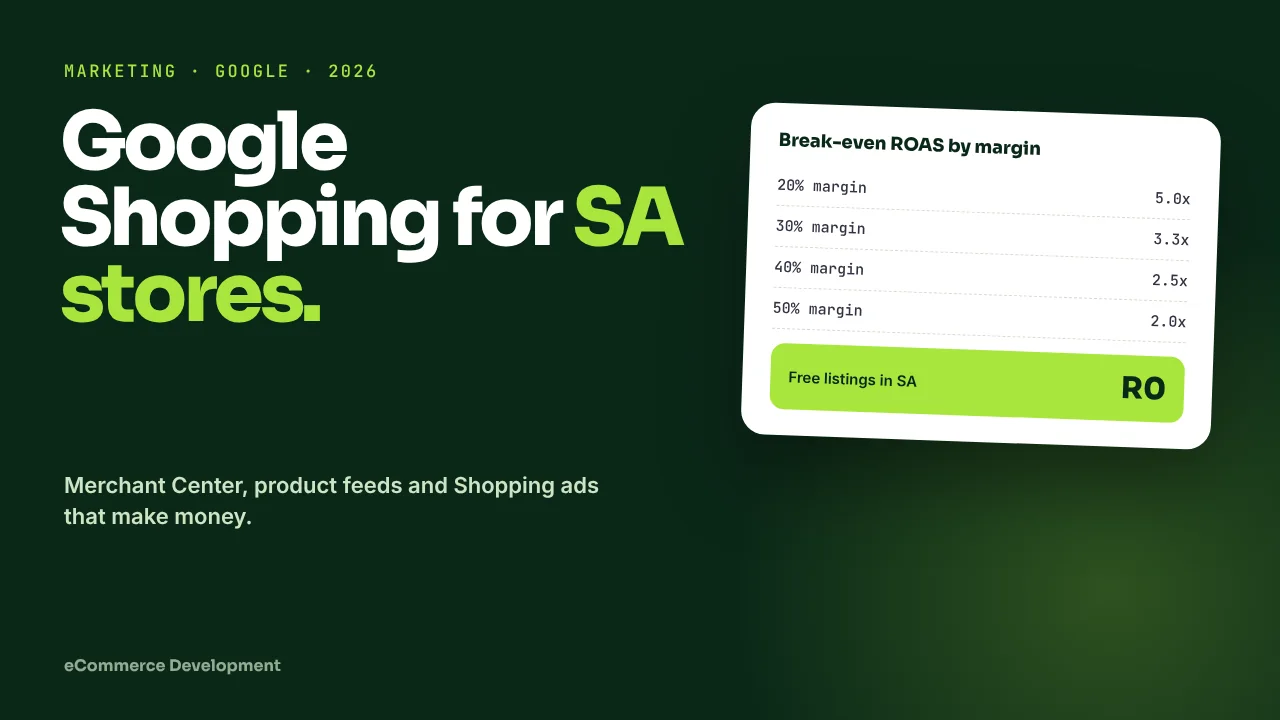
Know your break-even ROAS before you spend. It’s 1 divided by your gross margin: 2.5x at 40% margin, 4x at 25%. Below that, each sale loses money on the first order.
Feed checker and ROAS calculator
Check a product against Merchant Center’s main rules and see whether your Shopping ads make money at your margin.
How Google Shopping works
Google Shopping has three parts. Google Merchant Center is where your product data lives. Free listings show those products in the Shopping tab and other Google surfaces at no cost. Shopping ads, run from Google Ads, put your products in paid placements at the top of search results, and you pay per click.
| Free listings | Shopping ads | |
|---|---|---|
| Cost | Free | Pay per click |
| Where products show | Shopping tab, Images, Lens, YouTube and other surfaces | Top of search results, Shopping tab, YouTube, Display and more |
| Visibility | Lower, organic | Higher, controlled by bids and budget |
| Needs | Merchant Center and an approved feed | Merchant Center, a Google Ads account and a budget |
| Available in SA | Yes | Yes, in rand |
Setting up Merchant Center, step by step
Create a Google Merchant Center account with your business details.
Verify and claim your store’s domain.
Add shipping costs and times, and a clear returns policy.
Connect your store with the official Google app or plugin.
Work through Diagnostics until your products are approved.
| Platform | How to connect | Watch out for |
|---|---|---|
| Shopify | The Google & YouTube app syncs products to Merchant Center and connects Google Ads | Missing barcodes, variant titles, and products you don’t want advertised |
| WooCommerce | The official Google for WooCommerce extension, or a feed plugin for more control | Caching and price mismatches, VAT display, and variable products |
| Any platform | A scheduled XML or CSV feed, or Google Sheets for small catalogues | Feeds that don’t update when prices or stock change |
The most common reason SA stores get suspended is “misrepresentation”. Google checks that your store looks like a real, trustworthy business before it shows your products.
Before you apply, make sure your site shows contact details and a physical or business address, clear shipping and returns pages, a privacy policy, a secure checkout, and prices that match your feed exactly. See returns and the Consumer Protection Act and the POPIA privacy policy your store needs.
The feed fixes that matter most
| Attribute | Rule | What good looks like |
|---|---|---|
| Title | Required, max 150 characters, no promotional text | Brand, product type, then key attributes: size, colour, material, model. Most important words first |
| Description | Required, max 5,000 characters | What it is, who it’s for, materials, dimensions, care. No “free shipping” or “sale” |
| Image | Required | A clear photo of the product, no added text, watermarks or borders |
| Price | Required, must match your page | The VAT-inclusive price shown at checkout, in ZAR |
| Availability | Required, must match your page | Updated automatically when stock changes |
| GTIN (barcode) | Required where the product has one | The real manufacturer barcode. Never invent one |
| Brand | Required for most new products | Your brand, or the manufacturer’s |
| Product type and category | Recommended | Your own category path, so you can group products in campaigns |
| Shipping | Required in account or feed | Real delivery costs and times for South Africa |
Titles: the single biggest win
Shopping ads don’t use keywords, so Google reads your title to decide which searches to show you for. Shoppers only see the first part of it. Lead with the words people actually search.
Check your own titles, barcodes and images with the free feed checker.
Shopping campaign types
| Campaign | How it works | Good for | Watch out for |
|---|---|---|---|
| Standard Shopping | Shopping placements only, with manual or automated bidding by product group | Control, smaller budgets, learning what sells | More hands-on management |
| Performance Max | Google’s automated campaign across Search, Shopping, YouTube, Display, Gmail and Maps | Scale once you have conversion data | Less visibility into where money goes; needs good tracking and feed |
Many SA stores start with Standard Shopping on their best sellers, learn which products and margins work, then move to Performance Max with conversion values set properly. Either way, track purchases with their value, not just clicks. More on budgets in Google Ads for ecommerce in South Africa.
The ROAS you need to break even
Return on ad spend (ROAS) is revenue divided by ad spend. A ROAS of 3x means R3 of sales for every R1 spent. Whether that’s good depends entirely on your margin: break-even ROAS is 1 divided by your gross margin.
Break-even ROAS by gross margin
Revenue needed per R1 of ad spend to cover product cost
Break-even ROAS = 1 ÷ gross margin. Excludes fixed costs and repeat purchases. Calculate yours with the ROAS calculator.
This is why low-margin products often struggle on Shopping ads. A 20% margin product needs R5 of sales for every R1 of ads just to break even. Put your budget behind high-margin products, and use your feed to exclude or limit products that can’t make money.
Worked example
A store with a 40% margin and a R650 average order spends R5,000 a month at R4 a click. That’s 1,250 clicks. At a 1.5% conversion rate, that’s about 19 orders and R12,188 in sales: a ROAS of 2.44x, just under the 2.5x break-even. Lift conversion to 2% and the same budget brings 25 orders, R16,250 in sales and a 3.25x ROAS, with about R1,500 profit after ads. Small changes in conversion rate swing the result, so fix your product pages before you raise the budget. See conversion rate optimisation for SA stores.
Getting Google Shopping ready for Black Friday
- Fix feed errors now. New products and changes can take days to be reviewed, and review queues grow in November.
- Use the sale price attribute for discounts, with start and end dates, instead of changing titles.
- Keep stock in sync. Ads for sold-out products waste money and can trigger warnings.
- Check that your prices match the price shown at checkout on every product, especially if you use discount apps.
- Raise budgets gradually on products with proven ROAS, starting a week or two before the big days.
- Check your shipping settings reflect peak-season delivery times.
More in Black Friday readiness for SA stores.
Common Merchant Center problems and fixes
| Problem | Usual cause | Fix |
|---|---|---|
| Account suspended for misrepresentation | Missing contact details, policies or trust signals | Add contact, address, shipping, returns and privacy pages, then request a review |
| Price mismatch | Feed price differs from the page, often because of VAT or discount apps | Submit the VAT-inclusive price shown at checkout; refresh the feed more often |
| Availability mismatch | Stock changes not syncing | Sync stock automatically; avoid cached product pages showing old stock |
| Invalid or missing GTIN | Made-up or wrong barcodes | Use real barcodes, or brand plus MPN for products without one |
| Image rejected | Text, watermarks or promo overlays on images | Use a clean product photo as the main image |
| Products approved but no impressions | Weak titles, few products, or low bids | Rewrite titles around search terms, add attributes, and check bids and budgets |
Questions
Is Google Shopping available in South Africa?
Yes. South Africa is a supported country for Shopping ads, in rand, and for free listings. South African shoppers also have the Shopping tab in Google Search.
Are Google free listings really free?
Yes. Once your products are approved in Merchant Center, they can appear in free listings across Google surfaces at no cost. You only pay when you run Shopping ads.
How much do Google Shopping ads cost in South Africa?
You set the budget and pay per click. Costs per click vary by category and competition. What matters more is whether your ROAS beats your break-even: 1 divided by your gross margin.
Do I need a GTIN for Google Shopping?
If your product has a manufacturer barcode, include it. Products without one, such as handmade or own-brand items without barcodes, can be submitted with brand and MPN, or with identifier_exists set to no. Never make up barcodes.
Should I use Performance Max or Standard Shopping?
Standard Shopping gives more control and is easier to learn from. Performance Max can scale well once you have reliable conversion tracking and enough sales data. Many stores start with Standard Shopping and add Performance Max later.
Why are my products not showing on Google?
Check Merchant Center diagnostics for disapprovals, make sure your account isn’t suspended, and confirm free listings or a Shopping campaign are switched on. Approved products with no impressions usually need better titles or higher bids.
Sources

We have built 400+ online stores for South African businesses since 2014. Read more about eCommerce development in South Africa.